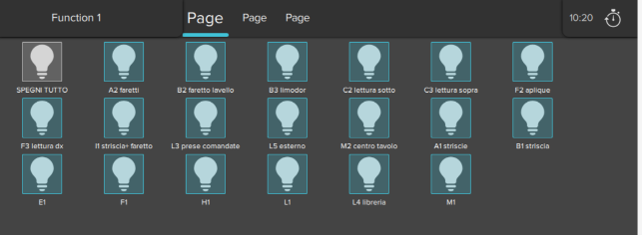
KNX Project Import (ETS Project)
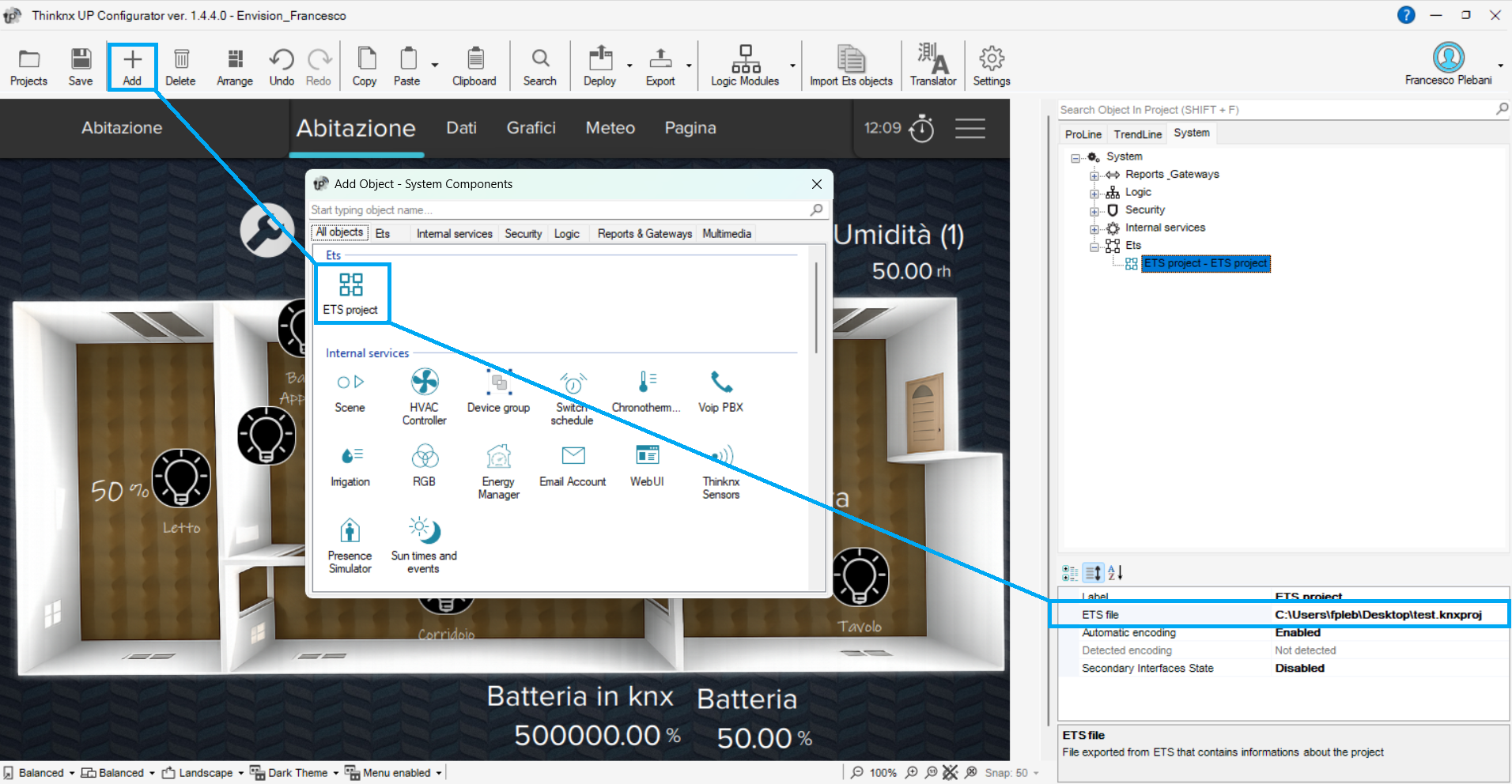
Starting from version 1.4.4 of the Thinknx Configurator, it is possible to directly import a KNX project exported from ETS in .knxproj format.
This feature is designed to speed up system configuration, allowing already defined group addresses to be reused and drastically reducing the need for manual entry.
The project import is performed through the dedicated object in the configurator, accessible from the resource addition section. Once the .knxproj file has been selected, the system automatically performs a structural analysis of the project, identifying the existing group addresses and comparing them with any addresses already configured within the system.
Step 1: Analysis
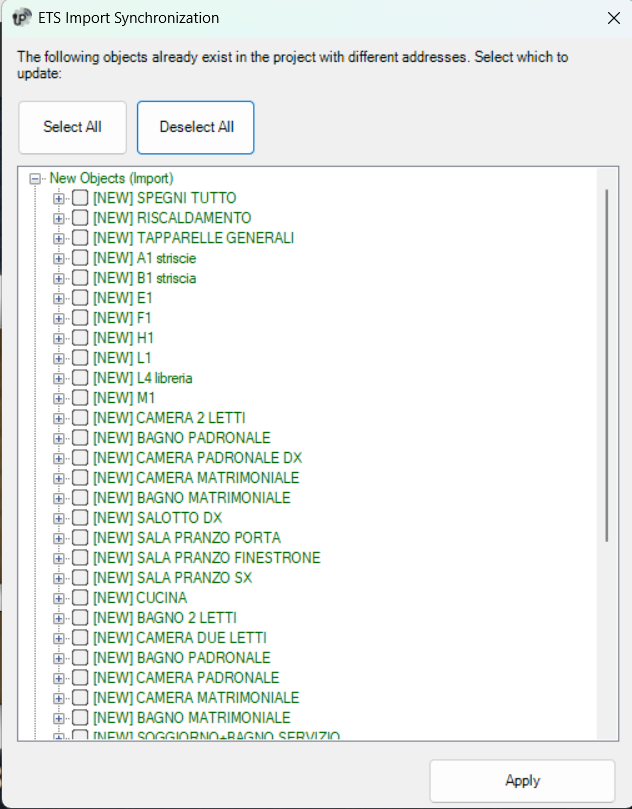
During the import phase, the configurator checks the group addresses, distinguishing between:
- New addresses, not yet present in the Thinknx project.
- Existing addresses.
- Possible conflicts or duplications.
In the case of a first configuration, all addresses are naturally recognized as new.
This phase is essential because it allows the system to build a consistent base on which automatic associations can be created.
Step 2: Automatic Configuration Generation
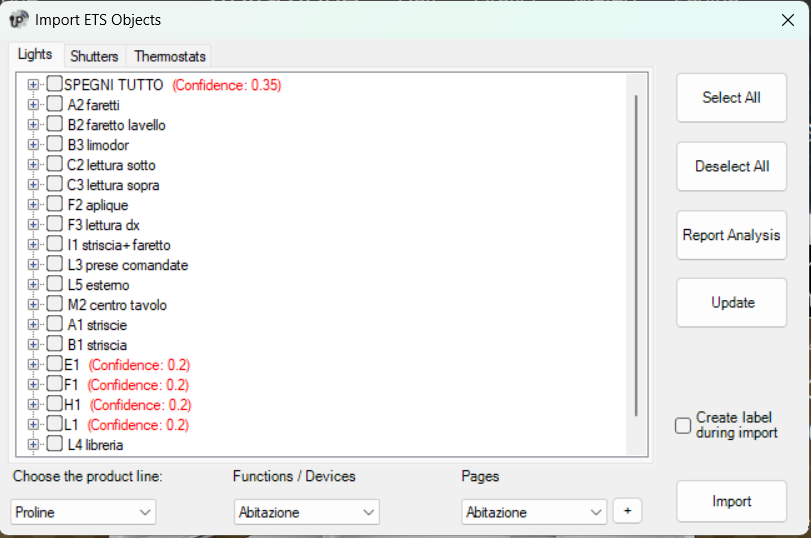
Once the import has been confirmed, the configurator automatically generates a new workspace in the form of a dedicated tab.
This tab contains all detected KNX objects and represents the main environment where devices are validated and organized.
Within this interface, the system proposes an automatic subdivision of the objects according to their function, typically distinguishing between:
- Lights
- Shutters
- Thermostats
This categorization is not arbitrary, but is derived from a semantic analysis of the group addresses and the conventions used in the ETS project.
One of the central elements of the import process is the automatic association system between KNX addresses and functional objects.
For each imported element, an indicator is displayed, generally highlighted in red, representing the confidence level of the algorithm.
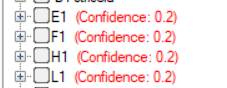
This value expresses how correct the system considers the proposed association to be, based on several factors:
- Naming of the group addresses.
- Hierarchical structure of the ETS project.
- Typical patterns, such as ON/OFF, DIM, UP/DOWN.
A high confidence value, or an empty field, indicates that the object has most likely been correctly recognized, for example a light with ON/OFF and status addresses.
Lower values suggest that a manual check is required. The import mechanism does not simply copy data, but performs an actual interpretation of the ETS project. This makes it possible to transform a set of group addresses into a structure that is already ready to be used within the Thinknx system.
In particular, the system:
- Aggregates related addresses into logical objects.
- Recognizes typical functional patterns of KNX devices.
- Automatically prepares the objects for integration into the user interface.
This approach makes it much faster to move from a purely technical configuration, typical of ETS, to a configuration oriented toward the final user.
At the end of the process, the KNX project is transformed into an operational configuration inside the Thinknx Configurator, complete with imported group addresses and already structured objects ready for use.
Import Parameters
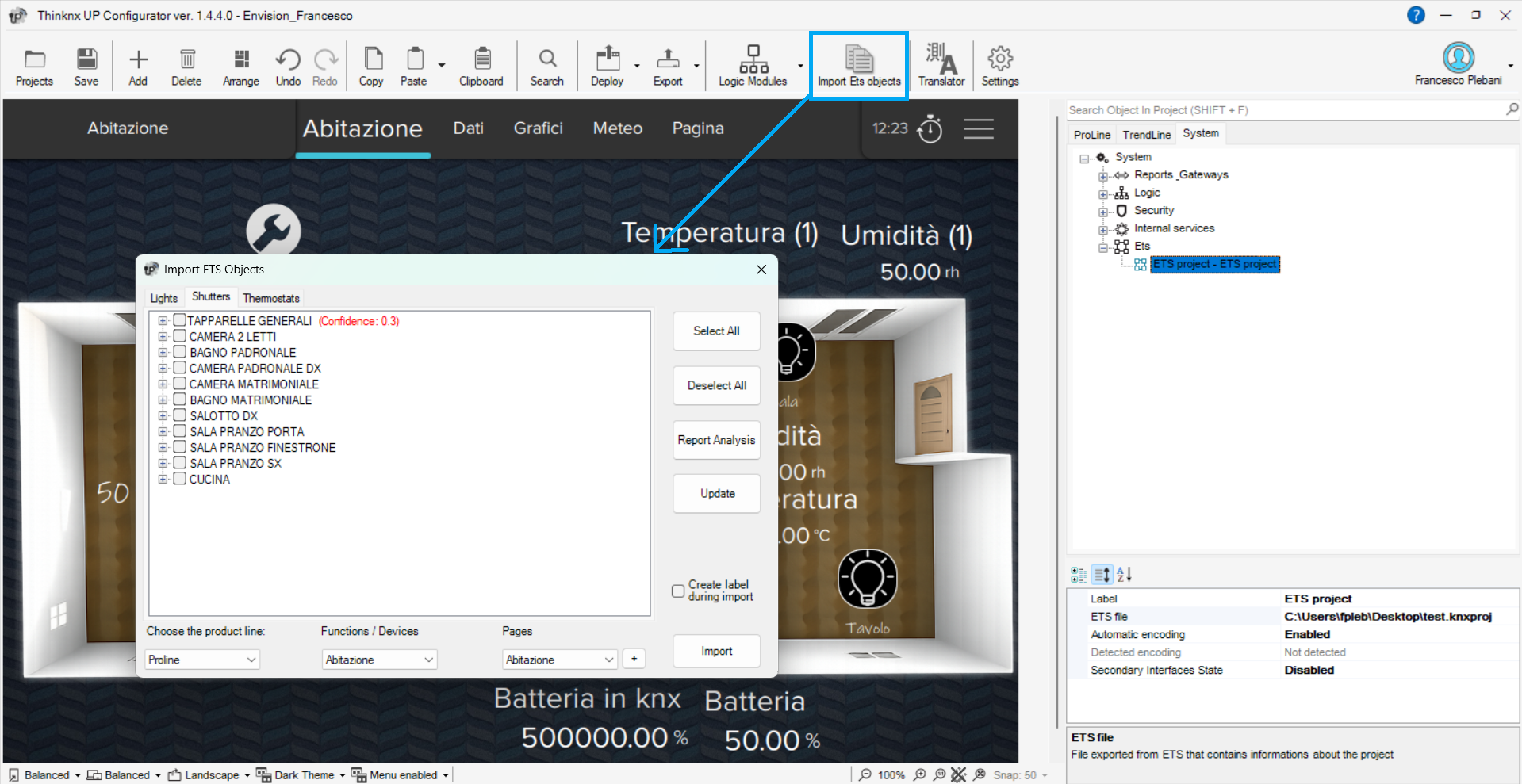
During the import phase, it is possible to define the context in which the objects will be inserted, using the parameters available in the configuration bar.

In particular:
- Product Line: Allows you to select the application context, for example Proline, in which the objects will be created.
- Functions/Devices: Defines the destination functional category, for example Home.
- Pages: Allows you to choose the initial page where the imported objects will be inserted.
The system automatically manages the distribution of objects within the pages.
If the available space is used up, the configurator automatically creates new pages, ensuring that the import process continues until completion.
During this process, it is also possible to automatically generate texts associated with the objects, used as labels or descriptions in the user interface.